index.html

Your portfolio is a folder.

Write about your work in simple text files. Keep them in a folder on your computer. Run one command and your portfolio is live at indexhtml.co/yourname.

No website to maintain. No CMS to learn. No code to write.

What you get

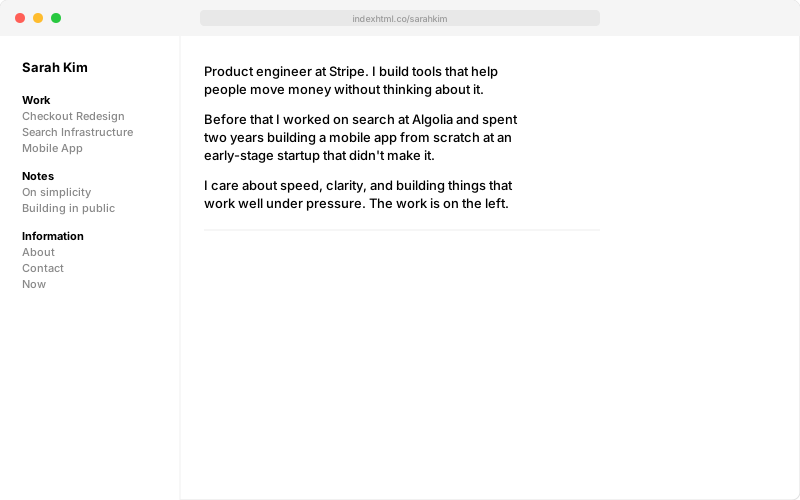
Example portfolio showing sidebar navigation and homepage intro

A clean, fast site at indexhtml.co/yourname with sidebar navigation, mobile support, and pages for your work, notes, about, and contact. Generated entirely from a folder on your computer.

How it works

>_

Install

Open Terminal and paste one command. This gives you the ix tool.

Write

A folder appears on your computer with starter files. Open them and write about your work.

Publish

Run ix publish. Your site is live in seconds at indexhtml.co/yourname.

Your files, your computer

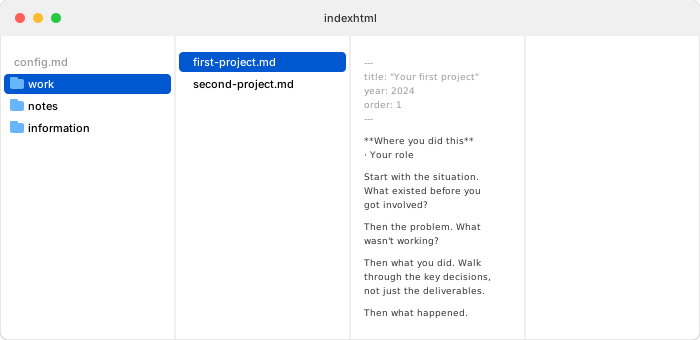
Finder column view showing the portfolio folder structure

Your portfolio is just folders and text files. Edit them in any text editor, TextEdit, VS Code, or even Notes. When you want to update your site, run ix publish and it goes live.

Working on your portfolio

Want to add a new project?

Create a new .md file in the work/ folder. Write about it. Publish.

Want to fix a typo?

Open the file. Fix it. Publish.

Want to reorder your projects?

Change the order number in the file header. Publish.

Want to remove something?

Delete the file. Publish.

Want to add a new section?

Create a new folder. Put files in it. Publish.

The pattern is always the same: change a file, run ix publish. That's the entire workflow.

Step by step

1

Open Terminal

On Mac, press Cmd + Space and type Terminal, then hit Enter. You'll see a window with a blinking cursor. That's where you paste commands.

2

Install index.html

Paste this and press Enter. It installs the ix tool on your computer.

npm install -g indexhtmlCopy
3

Create your portfolio

Replace "yourname" with the name you want in your URL.

ix init yournameCopy

A folder called indexhtml appears in your home directory with starter files. Every file has writing prompts to help you figure out what to say.

4

Write about your work

Open the files in any text editor (TextEdit, VS Code, Sublime, anything). Replace the prompts with your own words. Each project is one file:

~/indexhtml/
  config.md           ← your homepage
  work/
    first-project.md  ← your work
    second-project.md
  notes/
    first-note.md     ← short writing
  information/
    about.md
    contact.md
    now.md
5

Publish

Go back to Terminal and paste this:

ix publishCopy

Your site is live at indexhtml.co/yourname. Your username is claimed on first publish. Nobody else can take it. Run this command again whenever you update a file.

What a project file looks like

Each project is a text file with a small header and your writeup below it:

---
title: "Your Project Name"
year: 2024
order: 1
---

**Company** · Your role

Start with the situation. What existed
before you got involved?

Then the problem. What wasn't working?

Then what you did. Walk through the key
decisions, not just the deliverables.

Then what happened. Numbers are great
if you have them.

Every starter file has prompts like this to help you figure out what to write. Replace them with your own words.

Out of the box

Themes

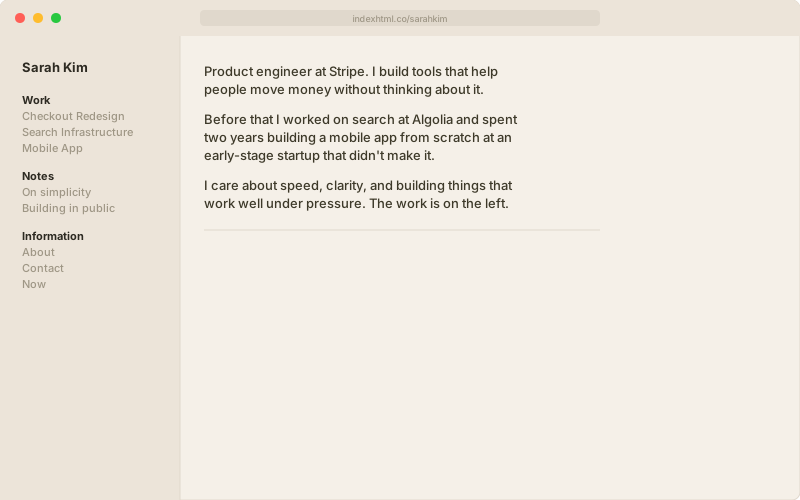
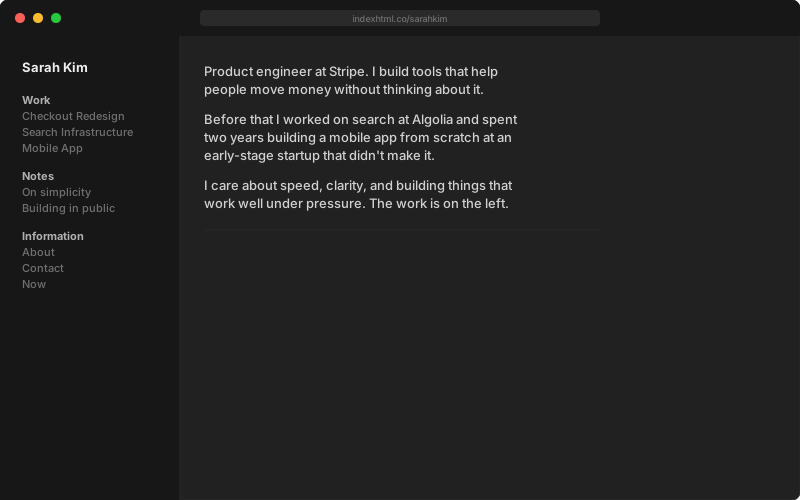
Invite a friend and you both unlock alternate themes for your portfolio. Share one of your invite codes. When they publish, themes unlock for both of you.

Claude inspired theme — warm cream background with terracotta accents
Claude (inspired)Warm cream. Terracotta accents.
OpenAI inspired theme — dark background with green accents
OpenAI (inspired)Dark. Clean. Green accents.

After your first publish, run ix invite to see your codes. Your friend runs ix init theirname --invite YOUR_CODE. Once they publish, both of you can set a theme with ix theme claude or ix theme openai.

npm install -g indexhtmlCopy

You'll have a live site in under 5 minutes.

Live sites